Skip to content

Field note · Windows 10 / 11 · October 2026

The optimization Windows 11 will not block.

Equalizer APO cannot attach to Voicemeeter Input on 24H2, 25H2, or 26H2. Loudness Equalization on that same virtual device still runs. Voicemeeter and APO only share the chain on 23H2 Tiny11, with Windows updates stopped.

24H2 + APO
Blocked
Loudness path
Clear
This profile
PCM 24/48

01 · Path

Four stops. One default device.

02 · Voicemeeter Input

This is the only Windows enhancement in the chain. Short release brings quiet passages up fast and lets loud hits recover instead of sitting ducked. It still runs on 24H2 and later, which is why it replaces APO here.

Endpoint
VB-Audio Voicemeeter VAIO
Configure
7.1 Surround
Enhancement
Loudness Equalization
Release
Short
Off
Speaker Fill, Room Correction
L
R
C
LFE
SL
SR
BL
BR

02 · Setup

Pick the output. Tick the chain.

Every Windows 10 and 11 build

Stable loudness

One compressor, on Voicemeeter Input. Your Sound Device stays 24-bit 48 kHz PCM. Nothing in this profile asks Windows to attach Equalizer APO to the virtual cable.

WDM buffer5.3 ms

Tested A1 value. About 5.3 ms at 48 kHz.

0 / 10

03 · 23H2

The build where Voicemeeter and APO still share a device.

Windows 11 23H2, installed as Tiny11, plus the Chris Titus Tech tweak that stops Windows updates, is the setup that lets Voicemeeter and Equalizer APO work together. 24H2, 25H2, and 26H2 are the builds that block APO on Voicemeeter Input. Stopping updates is what keeps 23H2 from turning into that block overnight.

Confirm the ISO is 23H2 before you install. The Internet Archive item linked here is NTDEV’s Tiny11, and that page describes a 22H2 base. Do not take a feature update after it is in.

04 · Block

Windows will not arm APO on the VAIO.

Voicemeeter Input is a virtual WDM endpoint, not a render device. On Windows 11 24H2, 25H2, and 26H2, Equalizer APO’s Device Selector can show a yellow mark on it in every install mode. The box looks ticked. The preamp test is silent. Reinstalling does not put the APO in that stream.

25H2 is the same audio engine as 24H2. The block is still there on 26H2. Windows 10 and 23H2 still accept the virtual device — that is the 23H2 setup above, and it only lasts if updates are stopped.

  • LFX/GFX

    Old pre-mix slot. 24H2 ignores it on this virtual device.

  • SFX/EFX

    Normal Windows 10 and 11 slot. The preamp test still does nothing.

  • SFX/MFX

    Post-mix. This is the mode people label SFX/MDF. The yellow mark stays.

05 · If you still want EQ

Two places Windows cannot pretend to host it.

Your Sound Device only

On 24H2 and later, install Equalizer APO on Your Sound Device, not on Voicemeeter Input. Try SFX/EFX, then SFX/MFX. Format must be 24-bit 48000 Hz. DTS:X steals the slot. Uncheck both exclusive boxes while you run the preamp test, then decide if games may bypass the curve.

On 24H2 and later, use this with the Loudness profile, not with DTS:X.
VST inside Banana

A plug-in on the Voicemeeter strip sits in the mixer, after Windows has already handed off the stream. 24H2 cannot unregister it. It keeps working when Your Sound Device’s format is DTS:X and when an app takes exclusive mode on that device.

This is the EQ that survives both profiles, on every build.

2026.txt · 23H2

Voicemeeter Input preset

Download

Equalizer APO 1.4.2, instant mode, device Voicemeeter Input, 7.1 surround. Two ReaXcomp stages (Base Compression, then Additional), then three filters. This arms only when Windows still accepts APO on the VAIO, which is the 23H2 setup. ReaPlugs has to be at C:\Program Files\VSTPlugins\ReaPlugs\reaxcomp-standalone.dll.

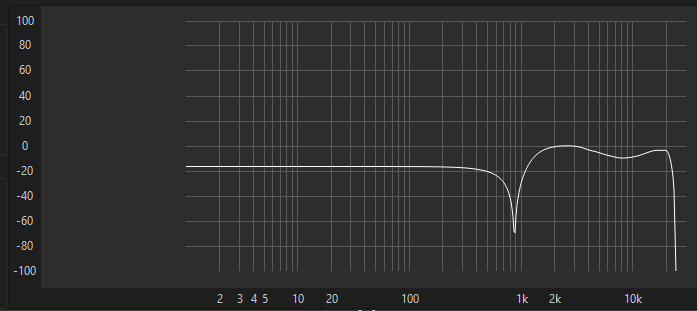
Equalizer APO analysis panel. The response sits near minus 20 dB, notches near 1 kHz, returns toward 0 dB around 2 kHz, then the low pass falls off past 10 kHz.
Equalizer APO analysis panel for 2026.txt. Filter curve only. ReaXcomp is not drawn on it.
01Peaking875 Hz·−83 dBQ 30
02High shelf6,000 Hz·−9 dB
03Low pass20,000 Hz·—Q 0.6

Save it as C:\Program Files\EqualizerAPO\config\2026.txt. The two name lines are comments so the editor does not reject them. Open that tab, or add Include: 2026.txt to config.txt.

06 · Known issues

DTS falls off on the next boot.

Main device reverts to default

If Voicemeeter Input is the Windows default playback device, Your Sound Device reverts to its default format at startup. The DTS decoder has to be enabled again every boot. Unbound will not stay on “Good to go” by itself.

Keep DTS: make Your Sound Device the default

Switch the playback device to Your Sound Device instead of Voicemeeter Input. The decoder stays armed across restarts. Apps follow Your Sound Device directly, so point a program at the VAIO only when that program should pass through Banana.

Leave the LG ULTRAGEAR+ as Ready. If the monitor becomes default, Your Sound Device goes quiet.